Installing OpenClaw
Run Installation Script
The official OpenClaw provides a script-based installation method:
Note: This step requires the development board to have internet access.
curl -fsSL https://openclaw.ai/install.sh | bash
Result:
 🦞 OpenClaw Installer
  If it works, it's automation; if it breaks, it's a "learning opportunity."

✓ Detected: linux

Install plan
OS: linux
Install method: npm
Requested version: latest

[1/3] Preparing environment
· Node.js not found, installing it now
· Installing Node.js via NodeSource
· Installing Linux build tools (make/g++/cmake/python3)
✓ Build tools installed
✓ Node.js v22 installed
· Active Node.js: v22.22.0 (/usr/bin/node)
· Active npm: 10.9.4 (/usr/bin/npm)

[2/3] Installing OpenClaw
✓ Git already installed
· Configuring npm for user-local installs
✓ npm configured for user installs
· Installing OpenClaw v2026.2.26
! npm install failed for openclaw@latest
  Command: env SHARP_IGNORE_GLOBAL_LIBVIPS=1 npm --loglevel error --silent --no-fund --no-audit install -g openclaw@latest
  Installer log: /tmp/tmp.AcFXhctNd1
! npm install failed; showing last log lines
! npm install failed; retrying
✓ OpenClaw npm package installed
✓ OpenClaw installed

[3/3] Finalizing setup

! PATH missing npm global bin dir: /home/bitbrick/.npm-global/bin
  This can make openclaw show as "command not found" in new terminals.
  Fix (zsh: ~/.zshrc, bash: ~/.bashrc):
    export PATH="/home/bitbrick/.npm-global/bin:$PATH"

🦞 OpenClaw installed successfully (2026.2.26)!
Cozy. I've already read your calendar. We need to talk.

· Starting setup


🦞 OpenClaw 2026.2.26 (bc50708) — Because Siri wasn't answering at 3AM.
After installation completes, you will enter the onboarding interface:
Starting setup


🦞 OpenClaw 2026.2.26 (bc50708) — Because Siri wasn't answering at 3AM.


▄▄▄▄▄▄▄▄▄▄▄▄▄▄▄▄▄▄▄▄▄▄▄▄▄▄▄▄▄▄▄▄▄▄▄▄▄▄▄▄▄▄▄▄▄▄▄▄▄▄▄▄
██░▄▄▄░██░▄▄░██░▄▄▄██░▀██░██░▄▄▀██░████░▄▄▀██░███░██
██░███░██░▀▀░██░▄▄▄██░█░█░██░█████░████░▀▀░██░█░█░██
██░▀▀▀░██░█████░▀▀▀██░██▄░██░▀▀▄██░▀▀░█░██░██▄▀▄▀▄██
▀▀▀▀▀▀▀▀▀▀▀▀▀▀▀▀▀▀▀▀▀▀▀▀▀▀▀▀▀▀▀▀▀▀▀▀▀▀▀▀▀▀▀▀▀▀▀▀▀▀▀▀
                  🦞 OPENCLAW 🦞

┌  OpenClaw onboarding
│
◇  Security ─────────────────────────────────────────────────────────────────────────────────╮
│                                                                                            │
│  Security warning — please read.                                                           │
│                                                                                            │
│  OpenClaw is a hobby project and still in beta. Expect sharp edges.                        │
│  By default, OpenClaw is a personal agent: one trusted operator boundary.                  │
│  This bot can read files and run actions if tools are enabled.                             │
│  A bad prompt can trick it into doing unsafe things.                                       │
│                                                                                            │
│  OpenClaw is not a hostile multi-tenant boundary by default.                               │
│  If multiple users can message one tool-enabled agent, they share that delegated tool      │
│  authority.                                                                                │
│                                                                                            │
│  If you’re not comfortable with security hardening and access control, don’t run           │
│  OpenClaw.                                                                                 │
│  Ask someone experienced to help before enabling tools or exposing it to the internet.     │
│                                                                                            │
│  Recommended baseline:                                                                     │
│  - Pairing/allowlists + mention gating.                                                    │
│  - Multi-user/shared inbox: split trust boundaries (separate gateway/credentials, ideally  │
│    separate OS users/hosts).                                                               │
│  - Sandbox + least-privilege tools.                                                        │
│  - Shared inboxes: isolate DM sessions (`session.dmScope: per-channel-peer`) and keep      │
│    tool access minimal.                                                                    │
│  - Keep secrets out of the agent’s reachable filesystem.                                   │
│  - Use the strongest available model for any bot with tools or untrusted inboxes.          │
│                                                                                            │
│  Run regularly:                                                                            │
│  openclaw security audit --deep                                                            │
│  openclaw security audit --fix                                                             │
│                                                                                            │
│  Must read: https://docs.openclaw.ai/gateway/security                                      │
│                                                                                            │
├────────────────────────────────────────────────────────────────────────────────────────────╯
│
◆  I understand this is personal-by-default and shared/multi-user use requires lock-down. Continue?
│  ● Yes / ○ No
└
Basic Configuration
In the onboarding interface, we need to perform some basic configuration to make OpenClaw work properly. Other settings can be changed later.
Operating Instructions
Navigation on the onboarding page primarily uses the keyboard: arrow keys to select, spacebar to check, and Enter to confirm.
Agree to Risk Notice
Select Yes and press Enter to confirm.
◆  I understand this is powerful and inherently risky. Continue?
│  ● Yes / ○ No
└
Select QuickStart Mode
Select QuickStart and press Enter to confirm.
◆  Onboarding mode
│  ● QuickStart (Configure details later via openclaw configure.)
│  ○ Manual
└
Select Model
You can skip model configuration here. Refer to the OpenClaw Model API Configuration document for detailed setup. Select Skip for now and press Enter to confirm.
◆  Model/auth provider
│  ○ OpenAI
│  ○ Anthropic
│  ○ Chutes
│  ○ vLLM
│  ○ MiniMax
│  ○ Moonshot AI (Kimi K2.5)
│  ○ Google
│  ○ xAI (Grok)
│  ○ Mistral AI
│  ○ Volcano Engine
│  ○ BytePlus
│  ○ OpenRouter
│  ○ Kilo Gateway
│  ○ Qwen
│  ○ Z.AI
│  ○ Qianfan
│  ○ Copilot
│  ○ Vercel AI Gateway
│  ○ OpenCode Zen
│  ○ Xiaomi
│  ○ Synthetic
│  ○ Together AI
│  ○ Hugging Face
│  ○ Venice AI
│  ○ LiteLLM
│  ○ Cloudflare AI Gateway
│  ○ Custom Provider
│  ● Skip for now
Filter model providers - Select all providers:
Filter models by provider
│  ● All providers
│  ○ amazon-bedrock
│  ○ anthropic
│  ○ azure-openai-responses
│  ○ cerebras
│  ○ github-copilot
│  ○ google
│  ○ google-antigravity
│  ○ google-gemini-cli
│  ○ google-vertex
│  ○ groq
│  ○ huggingface
│  ○ kimi-coding
│  ○ minimax
│  ○ minimax-cn
│  ○ mistral
│  ○ openai
│  ○ openai-codex
│  ○ opencode
│  ○ openrouter
│  ○ vercel-ai-gateway
│  ○ xai
│  ○ zai
For the default model, you can keep it unchanged. It can be modified in detailed configuration later:
◆  Default model
│  ● Keep current (default: anthropic/claude-opus-4-6)
└
Channel Configuration
In OpenClaw, a channel is a bridge connecting users and AI assistants. Configuring channels allows users to interact with OpenClaw (send messages) through familiar communication platforms.
You can skip channel configuration here. Refer to the OpenClaw Feishu Channel Configuration document for detailed setup. Select Skip for now and press Enter to confirm.
◆  Select channel (QuickStart)
│  ○ Telegram (Bot API)
│  ○ WhatsApp (QR link)
│  ○ Discord (Bot API)
│  ○ IRC (Server + Nick)
│  ○ Google Chat (Chat API)
│  ○ Slack (Socket Mode)
│  ○ Signal (signal-cli)
│  ○ iMessage (imsg)
│  ○ Feishu/Lark (飞书)
│  ○ Nostr (NIP-04 DMs)
│  ○ Microsoft Teams (Bot Framework)
│  ○ Mattermost (plugin)
│  ○ Nextcloud Talk (self-hosted)
│  ○ Matrix (plugin)
│  ○ BlueBubbles (macOS app)
│  ○ LINE (Messaging API)
│  ○ Zalo (Bot API)
│  ○ Zalo (Personal Account)
│  ○ Synology Chat (Webhook)
│  ○ Tlon (Urbit)
│  ● Skip for now (You can add channels later via `openclaw channels add`)
Configure Skills
Select Yes to configure. You can choose the Skills you need or skip. Later, you can let OpenClaw configure its own Skills through conversation without manual intervention:
Configure skills now? (recommended)
│  Yes
│
◆  Install missing skill dependencies
│  ◻ Skip for now (Continue without installing dependencies)
│  ◻ 🔐 1password
│  ◻ 📰 blogwatcher
│  ◻ 🫐 blucli
│  ◻ 📸 camsnap
│  ◻ 🧩 clawhub
│  ◻ 🎛️ eightctl
│  ◻ ♊️ gemini
│  ◻ 🧲 gifgrep
│  ◻ 🐙 github
│  ◻ 🎮 gog
│  ◻ 📍 goplaces
│  ◻ 📧 himalaya
│  ◻ 📦 mcporter
│  ◻ 🍌 nano-banana-pro
│  ◻ 📄 nano-pdf
│  ◻ 💎 obsidian
│  ◻ 🎙️ openai-whisper
│  ◻ 💡 openhue
│  ◻ 🧿 oracle
│  ◻ 🛵 ordercli
│  ◻ 🗣️ sag
│  ◻ 🌊 songsee
│  ◻ 🔊 sonoscli
│  ◻ 🧾 summarize
│  ◻ 📱 wacli
│  ◻ 𝕏 xurl
└
Configure API Keys
Select No for all:
 Set GOOGLE_PLACES_API_KEY for goplaces?
│  No
│
◇  Set GEMINI_API_KEY for nano-banana-pro?
│  No
│
◇  Set NOTION_API_KEY for notion?
│  No
│
◇  Set OPENAI_API_KEY for openai-image-gen?
│  No
│
◇  Set OPENAI_API_KEY for openai-whisper-api?
│  No
│
◇  Set ELEVENLABS_API_KEY for sag?
│  No
│
Configure Hooks
Select all configurations with spacebar, then press Enter to confirm:
◇  Hooks ──────────────────────────────────────────────────────────────────╮
│                                                                          │
│  Hooks let you automate actions when agent commands are issued.          │
│  Example: Save session context to memory when you issue /new or /reset.  │
│                                                                          │
│  Learn more: https://docs.openclaw.ai/automation/hooks                   │
│                                                                          │
├──────────────────────────────────────────────────────────────────────────╯
│
◆  Enable hooks?
│  ◻ Skip for now
│  ◼ 🚀 boot-md (Run BOOT.md on gateway startup)
│  ◼ 📎 bootstrap-extra-files (Inject additional workspace bootstrap files via glob/path patterns)
│  ◼ 📝 command-logger (Log all command events to a centralized audit file)
│  ◼ 💾 session-memory (Save session context to memory when /new or /reset command is issued)
Complete Installation
◇  Systemd ────────────────────────────────────────────────────────────────────────────────╮
│                                                                                          │
│  Linux installs use a systemd user service by default. Without lingering, systemd stops  │
│  the user session on logout/idle and kills the Gateway.                                  │
│  Enabling lingering now (may require sudo; writes /var/lib/systemd/linger).              │
│                                                                                          │
├──────────────────────────────────────────────────────────────────────────────────────────╯
│
◇  Systemd ─────────────────────────────────╮
│                                           │
│  Enabled systemd lingering for bitbrick.  │
│                                           │
├───────────────────────────────────────────╯
│
◇  Gateway service runtime ────────────────────────────────────────────╮
│                                                                      │
│  QuickStart uses Node for the Gateway service (stable + supported).  │
│                                                                      │
├──────────────────────────────────────────────────────────────────────╯
│
◒  Installing Gateway service….
Installed systemd service: /home/bitbrick/.config/systemd/user/openclaw-gateway.service
◇  Gateway service installed.
│
◇
Agents: main (default)
Heartbeat interval: 30m (main)
Session store (main): /home/bitbrick/.openclaw/agents/main/sessions/sessions.json (0 entries)
│
◇  Optional apps ────────────────────────╮
│                                        │
│  Add nodes for extra features:         │
│  - macOS app (system + notifications)  │
│  - iOS app (camera/canvas)             │
│  - Android app (camera/canvas)         │
│                                        │
├────────────────────────────────────────╯
│
◇  Control UI ─────────────────────────────────────────────────────────────────────╮
│                                                                                  │
│  Web UI: http://127.0.0.1:18789/                                                 │
│  Web UI (with token):                                                            │
│  http://127.0.0.1:18789/#token=d26f9eae39cfaf6ec8f481acf8ef8182a70b6f48541b148a  │
│  Gateway WS: ws://127.0.0.1:18789                                                │
│  Gateway: reachable                                                              │
│  Docs: https://docs.openclaw.ai/web/control-ui                                   │
│                                                                                  │
├──────────────────────────────────────────────────────────────────────────────────╯
│
◇  Start TUI (best option!) ─────────────────────────────────╮
│                                                            │
│  This is the defining action that makes your agent you.    │
│  Please take your time.                                    │
│  The more you tell it, the better the experience will be.  │
│  We will send: "Wake up, my friend!"                       │
│                                                            │
├────────────────────────────────────────────────────────────╯
│
◇  Token ─────────────────────────────────────────────────────────────────────────────────╮
│                                                                                         │
│  Gateway token: shared auth for the Gateway + Control UI.                               │
│  Stored in: ~/.openclaw/openclaw.json (gateway.auth.token) or OPENCLAW_GATEWAY_TOKEN.   │
│  View token: openclaw config get gateway.auth.token                                     │
│  Generate token: openclaw doctor --generate-gateway-token                               │
│  Web UI stores a copy in this browser's localStorage (openclaw.control.settings.v1).    │
│  Open the dashboard anytime: openclaw dashboard --no-open                               │
│  If prompted: paste the token into Control UI settings (or use the tokenized dashboard  │
│  URL).                                                                                  │
│                                                                                         │
├─────────────────────────────────────────────────────────────────────────────────────────╯
│
◆  How do you want to hatch your bot?
│  ○ Hatch in TUI (recommended)
│  ○ Open the Web UI
│  ● Do this later
└
Access Web UI
To access OpenClaw's web interface, we need to configure two settings to enable access within the local network:
If the
openclawcommand is not available, first runsource ~/.bashrcto load environment variables.You can use
openclaw helpto view the usage instructions for theopenclawcommand.
# 1. 设定网络访问模式为 LAN
openclaw config set gateway.bind lan

# 2. 设定HTTP访问降级为 true,允许不安全的HTTP访问(如果不设置这个参数,默认是禁止HTTP访问的)
openclaw config set gateway.controlUi.allowInsecureAuth true
openclaw config set gateway.controlUi.dangerouslyDisableDeviceAuth true
openclaw config set gateway.controlUi.dangerouslyAllowHostHeaderOriginFallback true

# 3. 重启 OpenClaw gateway 使配置生效
openclaw gateway restart
openclaw config set gateway.bind lan

🦞 OpenClaw 2026.2.26 (bc50708) — Less clicking, more shipping, fewer "where did that file go" moments.

Config overwrite: /home/bitbrick/.openclaw/openclaw.json (sha256 b06c46ae724c004b20c13f6732880f404385b83d4c8f4b02ef9a903b1b47e416 -> ce0ec749b920af4242ccee42363283dcd766ea207c551db33202329cede7036e, backup=/home/bitbrick/.openclaw/openclaw.json.bak)
Updated gateway.bind. Restart the gateway to apply.


openclaw config set gateway.controlUi.allowInsecureAuth true

🦞 OpenClaw 2026.2.26 (bc50708) — I'll butter your workflow like a lobster roll: messy, delicious, effective.

Config overwrite: /home/bitbrick/.openclaw/openclaw.json (sha256 cde7ca8e2611dcca9d10dcdb7e5a40a4d1a1cf215d4c091010e0d8035365c2fb -> cfe634c0ae210236015c26c1f86fa1332b6f24efff91f7313a61d87cff0f399e, backup=/home/bitbrick/.openclaw/openclaw.json.bak)
Updated gateway.controlUi.allowInsecureAuth. Restart the gateway to apply.

openclaw config set gateway.controlUi.dangerouslyDisableDeviceAuth true

🦞 OpenClaw 2026.2.26 (bc50708) — I'm like tmux: confusing at first, then suddenly you can't live without me.

Config overwrite: /home/bitbrick/.openclaw/openclaw.json (sha256 cfe634c0ae210236015c26c1f86fa1332b6f24efff91f7313a61d87cff0f399e -> 3224dd49453850d100f209f2f2da40da2a45acd627ef34bf8354424a72adb005, backup=/home/bitbrick/.openclaw/openclaw.json.bak)
Updated gateway.controlUi.dangerouslyDisableDeviceAuth. Restart the gateway to apply.
openclaw config set gateway.controlUi.dangerouslyAllowHostHeaderOriginFallback true

🦞 OpenClaw 2026.2.26 (bc50708) — Less middlemen, more messages.

Config overwrite: /home/bitbrick/.openclaw/openclaw.json (sha256 3224dd49453850d100f209f2f2da40da2a45acd627ef34bf8354424a72adb005 -> 51ee85ae2267767649ba4800e7202d06181206ac649daf29164049634609b36a, backup=/home/bitbrick/.openclaw/openclaw.json.bak)
Updated gateway.controlUi.dangerouslyAllowHostHeaderOriginFallback. Restart the gateway to apply.


openclaw gateway restart

🦞 OpenClaw 2026.2.26 (bc50708) — Your .env is showing; don't worry, I'll pretend I didn't see it.

Restarted systemd service: openclaw-gateway.service
Use the following command to view the OpenClaw web UI access address and Dashboard URL:
openclaw dashboard

🦞 OpenClaw 2026.2.26 (bc50708) — Works on Android. Crazy concept, we know.

Dashboard URL: http://127.0.0.1:18789/#token=d26f9eae39cfaf6ec8f481acf8ef8182a70b6f48541b148a
Copy to clipboard unavailable.
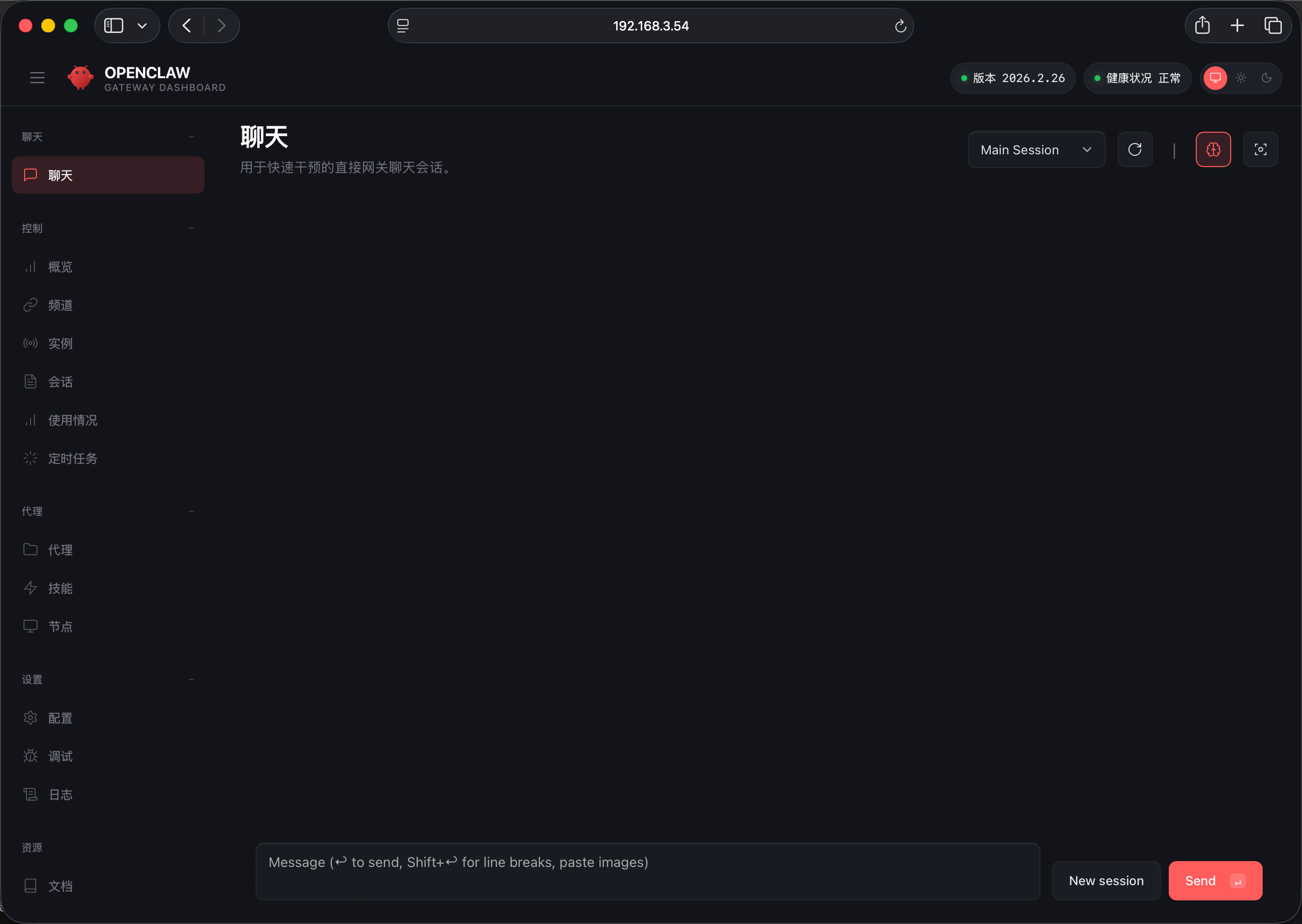
The access URL is typically http://<board-ip>:18789/#token=<token>. Enter this address in your browser to access OpenClaw's web interface:
- Use the
ifconfigcommand to find<board-ip>. Replace127.0.0.1with this IP to access from within the local network.<token>is an access token that verifies user permissions and ensures only authorized users can accessOpenClaw's web interface. The token changes each time you install or resetOpenClaw, so you need to use the latest token. The access URL obtained from theopenclaw dashboardcommand includes the latest token, so you can use it directly to access the web interface.
http://192.168.3.54:18789/#token=af94e258639978672caef32fd1366c4466b1c100eceae38e